iPad as Second Display for Mac: The Easy, Perfect Touch Setup
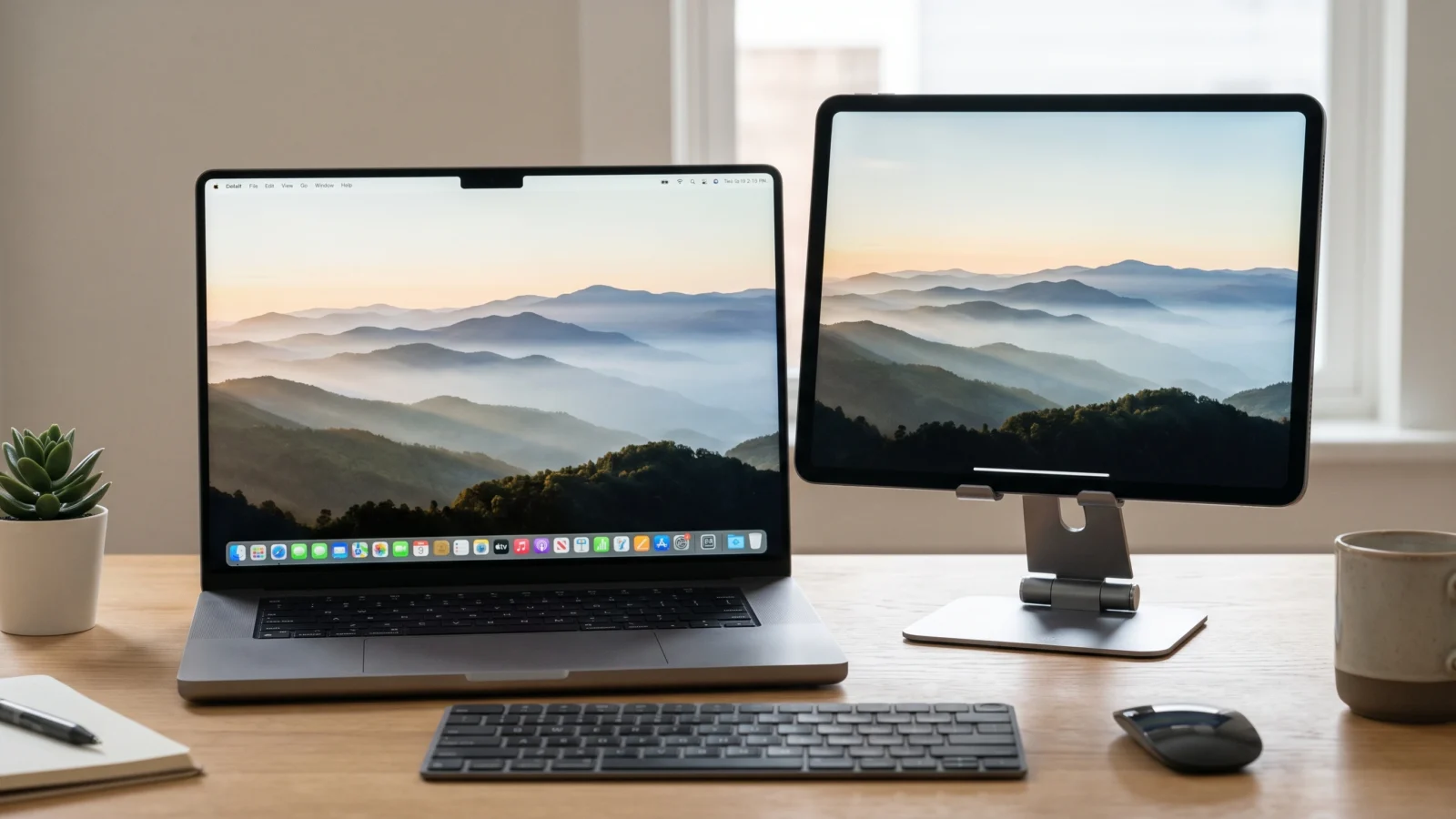
iPad as Second Display for Mac: Which Models Get Touch?
To use an iPad as second display for Mac, turn on Apple’s Sidecar, which extends or mirrors your desktop on any pair from Apple’s Sidecar list. The new touch controls are narrower. Apple ties them to iPadOS 27 and macOS 27, and Apple’s macOS 27 list names only Macs with Apple silicon.
Key takeaways
- Apple’s Sidecar list starts at macOS Catalina 10.15 and iPadOS 13, and covers most Mac models introduced in 2016 or later plus iPad (6th generation) or later.
- Apple’s Sidecar support page ties the expanded touch support to iPadOS 27 and macOS 27.
- Apple’s macOS 27 list covers only Macs with Apple silicon; iPadOS 27 starts at iPad (9th generation), iPad Air (4th generation), iPad mini (6th generation) and iPad Pro (4th generation).
- Both devices need the same Apple Account with two-factor authentication, and wireless use needs Bluetooth, Wi-Fi and Handoff on, within 10 meters (30 feet).
- Pick Universal Control instead if you want the iPad to keep running its own apps while your Mac keyboard and trackpad drive it.
Which devices can use an iPad as second display for Mac?
Apple’s Sidecar requirements page sets the floor at these models, and the minimums still date from macOS Catalina 10.15 and iPadOS 13.
| Device | Minimum OS on Apple’s Sidecar list | Models Apple lists |
|---|---|---|
| Mac | macOS Catalina 10.15 or later | MacBook Air introduced in 2018 or later |
| Mac | macOS Catalina 10.15 or later | iMac (Retina 5K, 27-inch, Late 2015) |
| Mac | macOS Catalina 10.15 or later | All other Mac models introduced in 2016 or later |
| iPad | iPadOS 13 or later | iPad Pro (all models) |
| iPad | iPadOS 13 or later | iPad (6th generation) or later |
| iPad | iPadOS 13 or later | iPad mini (5th generation) or later |
| iPad | iPadOS 13 or later | iPad Air (3rd generation) or later |
These are minimums. Some listed devices cannot run current software.
If both devices appear in that table, you can extend or mirror your desktop today. The software each one runs decides the rest.
Which Mac and iPad pairs get Sidecar touch in iPadOS 27?
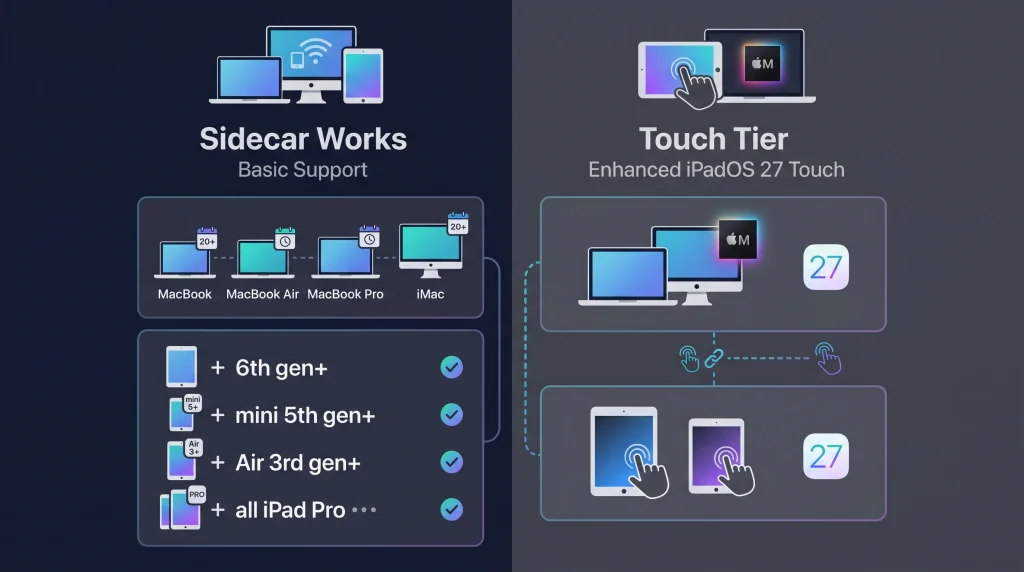
The touch tier needs both devices on the 27 releases, and Apple’s macOS 27 list names only Apple silicon Macs.
This is where the base list stops being enough. Apple’s Sidecar page says that with iPadOS 27 and macOS 27, “Sidecar offers greatly expanded support for using touch”. Earlier versions support a limited set of gestures, such as two-finger scrolling plus cut, copy, paste and undo.
So the touch tier needs a Mac that runs macOS 27 and an iPad that runs iPadOS 27. Apple’s compatibility lists for both are below.
| Device family | Runs the 27 release (Apple’s wording) | Sidecar touch tier with iPadOS 27 and macOS 27 |
|---|---|---|
| MacBook Air | MacBook Air with Apple silicon (2020 and later) | Yes, on macOS 27 |
| MacBook Pro | MacBook Pro with Apple silicon (2020 and later) | Yes, on macOS 27 |
| MacBook Neo | MacBook Neo (2026) | Yes, on macOS 27 |
| iMac | iMac with Apple silicon (2021 and later) | Yes, on macOS 27 |
| Mac mini | Mac mini with Apple silicon (2020 and later) | Yes, on macOS 27 |
| Mac Studio | Mac Studio (2022 and later) | Yes, on macOS 27 |
| Mac Pro | Mac Pro with Apple silicon (2023) | Yes, on macOS 27 |
| iPad Pro | iPad Pro (4th generation and later, M1 and later) | Yes, on iPadOS 27 |
| iPad Air | iPad Air (4th generation and later, M2 and later) | Yes, on iPadOS 27 |
| iPad | iPad (9th generation and later, A16) | Yes, on iPadOS 27 |
| iPad mini | iPad mini (6th generation, A17 Pro) | Yes, on iPadOS 27 |
The Mac rows come from Apple’s macOS 27 page and the iPad rows from Apple’s iPadOS 27 page. Apple’s support note for the Mac side is short: “If you have a Mac with Apple silicon, you can upgrade to macOS 27.”
Older iPads that keep the basic version
Put the two tables side by side and a gap appears among Sidecar compatible iPad models. This is our reading of Apple’s two lists. The iPad (6th generation), iPad (7th generation) and iPad (8th generation) are covered by “iPad (6th generation) or later” on the Sidecar list. They are not covered by “iPad (9th generation and later, A16)” on the iPadOS 27 list.
The same applies to iPad mini (5th generation) and iPad Air (3rd generation). These iPads can still act as a second screen on the software they run. They will not get the expanded touch controls, because those need iPadOS 27.
Intel Macs and the touch tier
Intel Macs from 2016 onward sit on the Sidecar list. They are not on Apple’s macOS 27 list, which names only Apple silicon models. By our reading, an Intel Mac still gives you a working second screen. Pair it with even the newest iPad and you stay on the older gesture set, because Apple says the touch expansion starts with macOS 27.
What you need before you connect
Apple’s Sidecar requirements page lists one set of conditions and adds no new ones for macOS 27. They apply whichever tier you land in:
- Same Apple Account. Both devices must be signed in with the same Apple Account using two-factor authentication.
- Range and radios. For wireless use, keep both devices within 10 meters (30 feet), with Bluetooth, Wi-Fi and Handoff turned on.
- Same network. Apple’s Mac User Guide adds that both devices should be on the same Wi-Fi network.
- No sharing. Your iPad must not be sharing its cellular connection, and your Mac must not be sharing its internet connection.
- USB option. For a cable connection, the iPad must be set to trust the Mac.
Apple suggests connecting the iPad directly to the Mac with the USB charge cable that came with the iPad, so it stays charged during use.
How to set up an iPad as second display for Mac on macOS 27
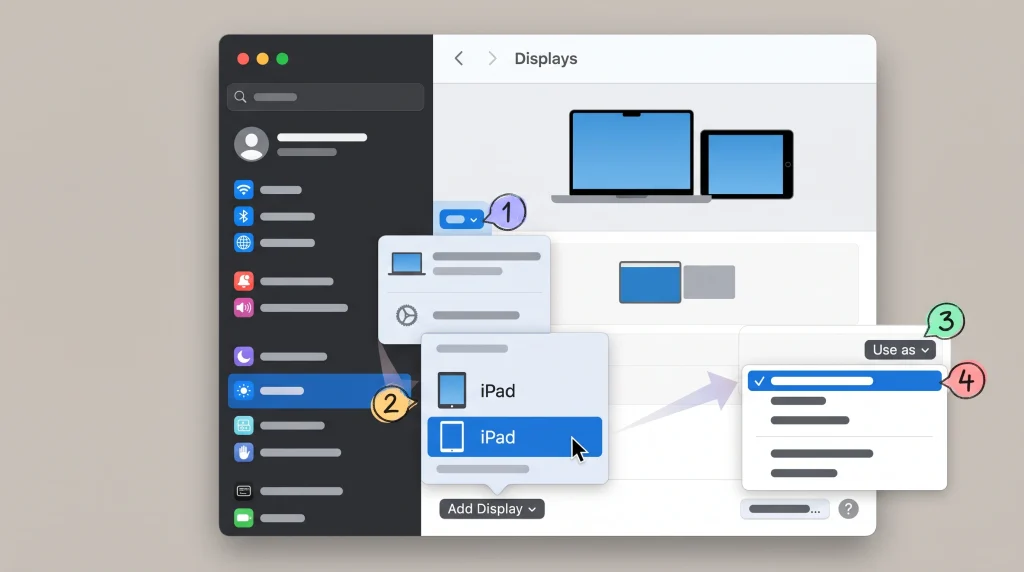
Apple’s Mac User Guide gives two routes.
From System Settings:
- Open System Settings from the Apple menu.
- Click Displays in the sidebar.
- Click the Add Display menu on the right, then choose your iPad.
- Click your iPad in Displays and pick an option in the “Use as” pop-up menu to extend or mirror.
- Click Arrange, then drag the displays to match where the iPad sits on your desk.
From Control Center:
- Click Control Center in the menu bar.
- Click Screen Mirroring, then choose your iPad.
To end the session from the Mac, open Control Center > Screen Mirroring and deselect your iPad in the list below “Mirror or Extend to”.
Extend or mirror
Extending gives you a separate desktop area on the iPad. Mirroring shows the same image on both screens. Apple’s support page notes that you mirror by choosing your iPad from the Screen Mirroring menu.
You can also send one window at a time. Move the pointer over a window’s full-screen button and choose the option to move it to your iPad, or drag the window across. To bring it back, use the full-screen button on the iPad and choose Move Window Back to Mac. On iPadOS 27 and macOS 27, you can touch and hold that button on the iPad instead.
The Sidecar settings worth changing
On macOS Ventura 13 or later, the Sidecar options live in System Settings > Displays, after you click your iPad at the top of the window. Three settings matter:
- Show Sidebar sets whether the Sidecar sidebar appears on the iPad.
- Show Touch Bar shows a Touch Bar on the bottom or top of the iPad screen, or turns it off.
- Enable double tap on Apple Pencil turns on the Pencil double-tap shortcut.
Using the iPad once it is connected
The pointer still belongs to the Mac. Apple says to use the mouse or trackpad connected to your Mac to point, click or select. You can type with a keyboard connected to either device.
The sidebar holds a button that disconnects the iPad from the Mac and ends the session. Apple’s guide describes other sidebar buttons for the menu bar, the Dock, modifier keys, undo and the onscreen keyboard.
Opening an iPad app pauses Sidecar. Apple says this suspends the Sidecar session until you switch back to the Sidecar app.
Touch in iPadOS 27: why some Mac apps respond better than others
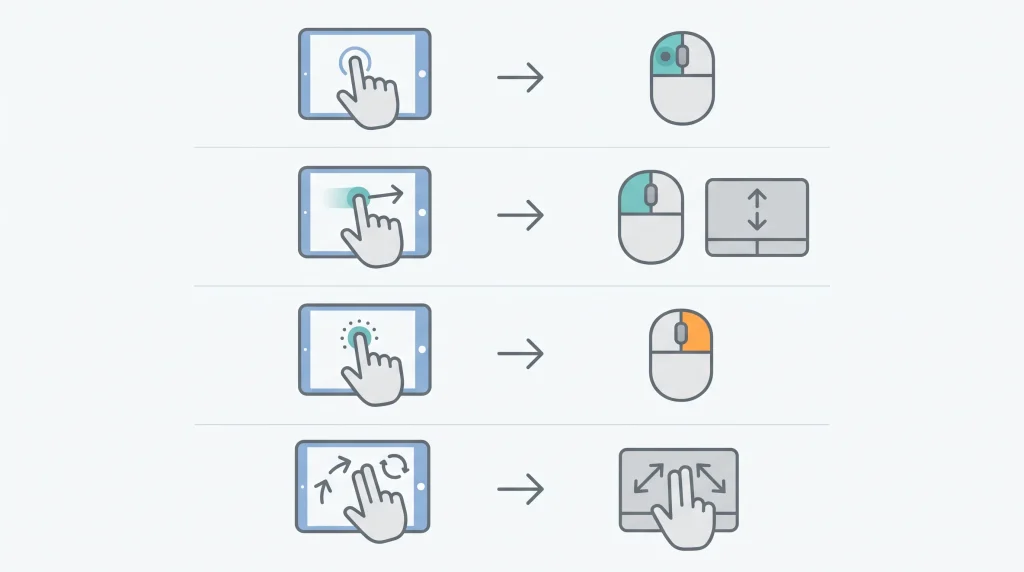
Apps that embed a third-party UI framework without native touch receive emulated clicks and scrolls, so touch can feel different from app to app.
Apple’s developer note TN3212 on Sidecar touch support explains what readers will notice first. In macOS 27, gesture recognizers are the only way a Mac app can respond to touch from a Sidecar iPad running iPadOS 27.
Apps that embed a third-party UI framework without native touch support get mouse emulation from AppKit instead:
| Your touch on the iPad | What the Mac app receives (per TN3212) |
|---|---|
| A tap | A mouse-down followed immediately by a mouse-up |
| A touch and immediate pan | Trackpad scroll events |
| A long press without movement | A right mouse click |
| A two-finger pinch or rotation | Trackpad magnify and rotate gestures together |
If touch feels odd in one app, that app is likely receiving emulated mouse input. That is our inference from Apple’s note, and the fix sits with the developer.
One more limit from the same note: AppKit allows gestures in one view hierarchy at a time. Apple says you “can’t perform multiple interactions simultaneously”, with scrolling as the exception. Expect one action at a time rather than several fingers working on different controls at once.
Apple Pencil on a Sidecar screen
Apple’s Mac User Guide says you can tap with Apple Pencil to select menu commands, checkboxes or files. In some apps, you can double-tap the lower section of the Pencil to switch drawing tools. In practice, that makes a Sidecar iPad a pen display for Mac drawing apps. That is our reading of Apple’s description, and app support varies.
Sidecar or Universal Control: which one do you need?
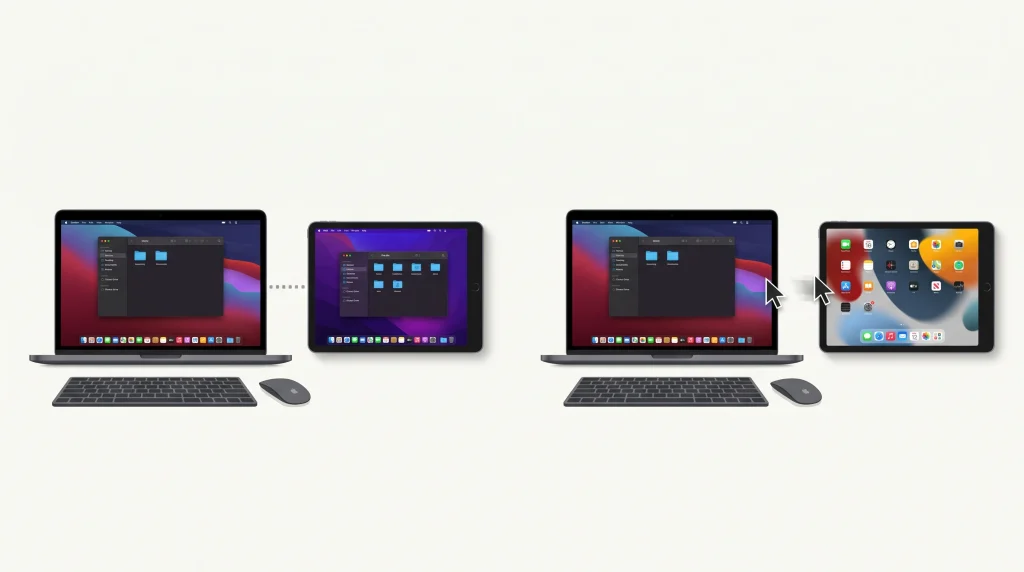
Sidecar is the feature that turns the iPad into an extended screen. Universal Control solves a different problem, and Apple says so on both support pages.
| Question | Sidecar | Universal Control |
|---|---|---|
| What the iPad shows | Part of your Mac desktop, extended or mirrored | Its own Home Screen and apps |
| Who controls the iPad | The Mac’s mouse or trackpad, plus touch and Pencil | The Mac’s keyboard, mouse or trackpad |
| Minimum OS (Apple’s list) | macOS Catalina 10.15, iPadOS 13 | macOS Monterey 12.4, iPadOS 15.4 |
| Mac exclusion to note | MacBook Air must be 2018 or later | Excludes MacBook Air (13-inch, 2017) |
To turn on Universal Control, use System Settings > Displays > Advanced on the Mac. Turn on Allow your pointer and keyboard to move between any nearby Mac or iPad. On the iPad, go to Settings > General > AirPlay & Continuity and turn on Cursor and Keyboard. Press Control-Option-Command-Delete to disconnect every linked device at once. The full steps are on Apple’s Universal Control page.
Choose Sidecar when you want more room for Mac windows. Choose Universal Control when you want iPad apps on the iPad and one keyboard for both.
iPad not showing up as a display? Check these first
Work through these in order. Each comes from Apple’s requirements.
- Confirm both devices use the same Apple Account with two-factor authentication.
- Turn on Bluetooth, Wi-Fi and Handoff on both, and join the same Wi-Fi network.
- Stop sharing the iPad’s cellular connection and the Mac’s internet connection.
- Move the iPad within 10 meters (30 feet) of the Mac.
- If you use a cable, check that the iPad trusts the Mac.
FAQ
Can I use my iPad as a second monitor for my Mac without a cable?
Yes. Using an iPad as second display for Mac works wirelessly when both devices are within 10 meters (30 feet) and have Bluetooth, Wi-Fi and Handoff turned on. A USB cable is optional and keeps the iPad charged during use.
Does Sidecar work with an Intel Mac?
Yes, if the Mac is on Apple’s Sidecar list, such as most Mac models introduced in 2016 or later. Intel Macs are not on Apple’s macOS 27 list, so by our reading they do not get the expanded touch support that Apple ties to iPadOS 27 and macOS 27.
Why can’t I use two fingers on two Mac controls at once with Sidecar?
Apple’s developer note TN3212 says AppKit allows gestures in one view hierarchy at a time, so you cannot run multiple interactions simultaneously. Scrolling is the exception. Apple frames this as a compatibility choice in AppKit.
Is Universal Control the same as using an iPad as a second display?
No. Universal Control lets your Mac’s keyboard and pointer control the iPad while the iPad runs its own apps. Sidecar makes the iPad show part of your Mac desktop, extended or mirrored.
Bottom line
If your Mac and iPad are both on Apple’s Sidecar list, try Sidecar before you buy a portable monitor. It works over Wi-Fi or a USB cable, and you can start it from Control Center.
Buy for touch only if the Mac has Apple silicon. In our view, the Mac decides whether you get the iPadOS 27 touch controls far more often than the iPad does. Pairing an older iPad with an Apple silicon MacBook still works, but we would choose an iPad on the iPadOS 27 list for the touch controls alone.
Sources
- Apple Support: Use an iPad as a second display for a Mac. https://support.apple.com/en-us/102597
- Apple Mac User Guide: Use your iPad as a second display for your Mac. https://support.apple.com/guide/mac-help/use-your-ipad-as-a-second-display-mchlf3c6f7ae/mac
- Apple Support: Universal Control: Use a single keyboard and mouse between Mac and iPad. https://support.apple.com/en-us/102459
- Apple Support: macOS 27 Golden Gate is compatible with these computers. https://support.apple.com/en-us/127255
- Apple: macOS 27. https://www.apple.com/os/macos/
- Apple: iPadOS 27. https://www.apple.com/os/ipados/
- Apple Developer: TN3212: Adopting gesture recognizers for Sidecar touch support. https://developer.apple.com/documentation/technotes/tn3212-adopting-gesture-recognizers-for-sidecar-touch-support