Complete iPhone Automation Triggers List: Best iOS 27 Hacks
iPhone Automation Triggers List: All 23 in iOS 27
This iPhone automation triggers list has 23 entries, by my count of Apple’s Shortcuts User Guide for iOS 27. Apple spreads them across five guide pages: event, travel, communication, transaction and setting. Three are new in iOS 27: Notification, Keyboard and Screenshot.
Key takeaways
- The 23 iPhone automation triggers are split across five Apple pages, and no single page lists all of them.
- Notification, Keyboard and Screenshot are the three triggers Apple lists as new in iOS 27, and the Keyboard trigger is iOS and iPadOS only.
- Apple’s Setting triggers page does not mention any of the three new triggers, so readers who start there will miss them.
- Apple’s own pages disagree on whether automations stay on one device or sync between devices.
- The pages readable as text do not say which triggers can run without asking, so test each one before you rely on it.
What is on the complete iPhone automation triggers list for iOS 27?
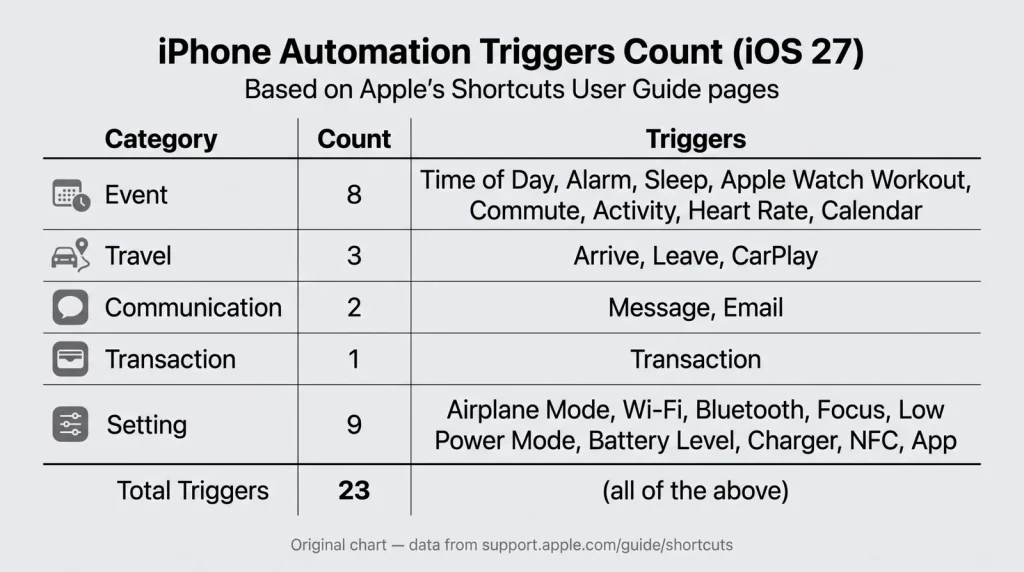
The Automation triggers section of the Shortcuts User Guide links five pages: Event triggers, Travel triggers, Communication triggers, Transaction trigger and Setting triggers. Counting each top-level entry on those pages gives 23 iOS 27 automation triggers. Options inside a trigger, such as Sunrise and Sunset under Time of Day, are not counted separately. The count is mine. The pages I read give no total.
| Apple guide page | Triggers listed | Count |
|---|---|---|
| Event triggers | Time of Day, Alarm, Sleep, Keyboard, Screenshot, Notification, Apple Watch Workout, Sound Recognition | 8 |
| Travel triggers | Arrive, Leave, CarPlay | 3 |
| Communication triggers | Email, Message | 2 |
| Transaction trigger | Transaction (When I tap) | 1 |
| Setting triggers | Wi-Fi, Bluetooth, Focus, Low Power Mode, Battery Level, Charger, NFC, App, Airplane Mode | 9 |
| Total | 23 |
Apple describes the feature as shortcuts with automations. They run actions on events such as time of day, arrival at a location or the opening of an app. When the event happens, Apple says you receive a notification asking you to run the automation. You can enable an automation to run without asking.
What are the event triggers on iPhone?
Apple’s event triggers page holds eight of the entries on the iPhone automation triggers list. In the version I read, it states no iOS version for any of them, so check each trigger on your own phone.
Time of Day and Alarm
Time of Day offers Sunrise, Sunset and a fixed time. Apple says Sunrise and Sunset follow your current location in the Weather app. You can offset either one from 15 minutes to 4 hours, before or after. A fixed time can repeat Daily, Weekly or Monthly.
Alarm has two events, Is Snoozed and Is Stopped. You choose which alarm counts: Any, Existing or Wake-up, which Apple ties to your Bedtime wake-up time.
Sleep
Sleep gives you three moments: Wind Down Begins, Bedtime Begins and Waking Up. Apple says this trigger requires a sleep schedule set up in the Health app. If the trigger never fires, check that schedule first.
Keyboard
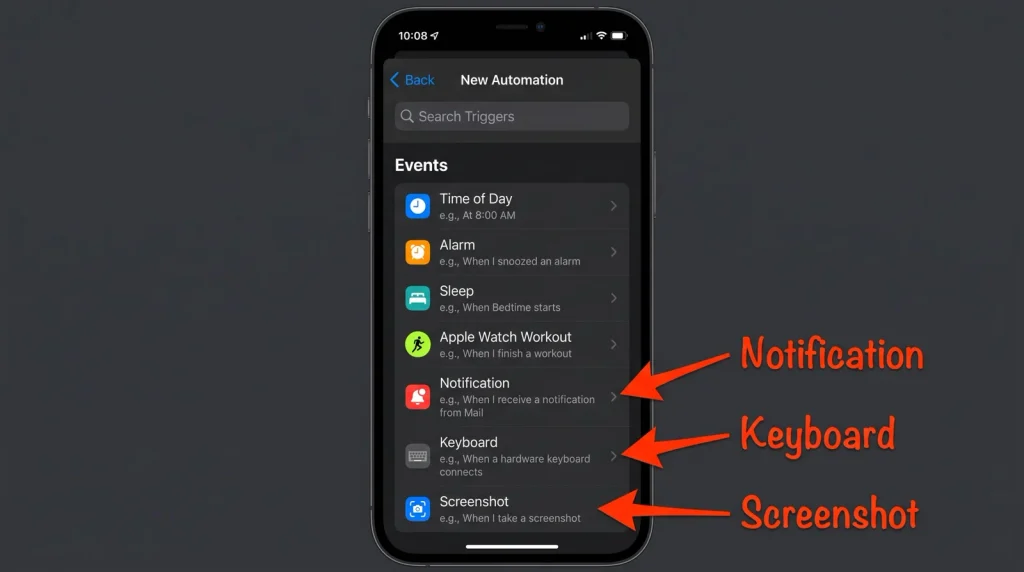
The Keyboard trigger runs when an external keyboard is connected, disconnected, or either. Apple lists it as new in iOS 27 and marks it iOS and iPadOS only, so it does not exist on the Mac. If you want to run a shortcut when a keyboard is connected to an iPhone, this is the trigger. Apple has not confirmed which connection types count as an external keyboard, whether wired, Bluetooth or a keyboard case.
Screenshot
The Screenshot trigger runs when a screenshot is saved to Photos, Files or the Clipboard. Apple’s event triggers page lists those three as the trigger’s options, each worded as a screenshot being saved to that place. Apple lists the trigger for iOS, iPadOS and macOS.
Notification
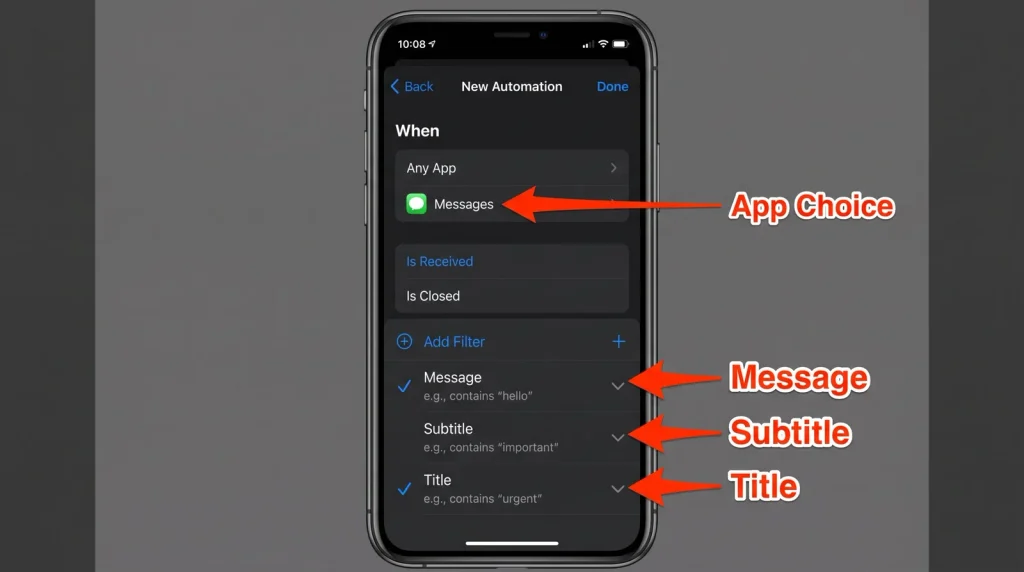
The iPhone notification automation trigger lets you pick the app that sends the notification and then add a filter on Message, Subtitle or Title.
Apple Watch Workout needs an iPhone paired with an Apple Watch. You pick one or more workout types, or any workout, and choose whether the automation runs when a workout starts, ends, or either.
Sound Recognition lets you choose a sound that triggers the automation. Apple says it requires Sound Recognition to be enabled in the Settings app.
What are the travel triggers?
Apple’s travel triggers page lists three: Arrive, Leave and CarPlay.
Arrive and Leave both start with a location. You choose one from a list or search for it, and you can drag the blue circle on the map to adjust the boundary. Each has a Time setting. Any runs the automation whenever you arrive or leave. Time Range runs it only if you arrive or leave between a start and end time you set.
CarPlay has two events. Connects runs when the device connects to CarPlay, and Disconnects runs when it disconnects.
One oddity on this page: Apple says you may need to set your contact card in Settings for “Before I Leave” triggers. In the version I read, the page lists no trigger by that name and does not mention Location Services. Apple has not confirmed which trigger the contact card note applies to.
What are the communication and transaction triggers?
The communication triggers page covers Email and Message.
| Trigger | Fields Apple lists |
|---|---|
| Sender, Subject Contains, Account, Recipient | |
| Message | Sender, Message Contains |
Apple states that when you add more than one criterion, “all criteria must be met” for the automation to run. Here is an illustration of my own. An Email trigger with a Sender and a Subject Contains phrase will not fire for a message from that sender with a different subject. If an automation seems dead, remove criteria until it fires, then add them back one at a time.
The Transaction trigger has its own page. Its single option, When I tap, selects a card and runs the automation whenever that card is tapped. Apple says the trigger works from wallet transactions. The page states no regional limit.
What are the setting triggers on iPhone?
The Setting triggers page lists nine triggers that react to the state of the phone itself.
| Trigger | Options Apple lists |
|---|---|
| Wi-Fi | Network |
| Bluetooth | Device |
| Focus | When Turning On, When Turning Off |
| Low Power Mode | Is Turned On, Is Turned Off |
| Battery Level | Equals, Rises Above, Falls Below |
| Charger | Is Connected, Is Disconnected |
| NFC | NFC Tag |
| App | App, Is Opened, Is Closed |
| Airplane Mode | Is Turned On, Is Turned Off |
In the version I read, this page does not list Notification, Keyboard or Screenshot. It also does not describe Run Immediately or Ask Before Running. A reader who learns the Shortcuts automation trigger list for iPhone from this page alone will think iOS 27 added nothing. That is wrong.
Which iPhone automation triggers are new in iOS 27?
Apple’s What’s new in iOS 27 page for Shortcuts names three new automations.
| New trigger | Platforms Apple names | Options on the event triggers page |
|---|---|---|
| Notification | No platform note in Apple’s list | App, plus Add Filter on Message, Subtitle or Title |
| Keyboard | iOS and iPadOS only | Connected, Disconnected, Connected or Disconnected |
| Screenshot | iOS, iPadOS and macOS | Photos, Files, Clipboard |
Apple attaches no platform note to Notifications in that list. The pages I read also do not tie the three triggers to Apple Intelligence. Apple does say that creating shortcuts from a natural language description requires Apple Intelligence, which is a separate feature from the triggers.
Where do Apple’s own pages disagree?
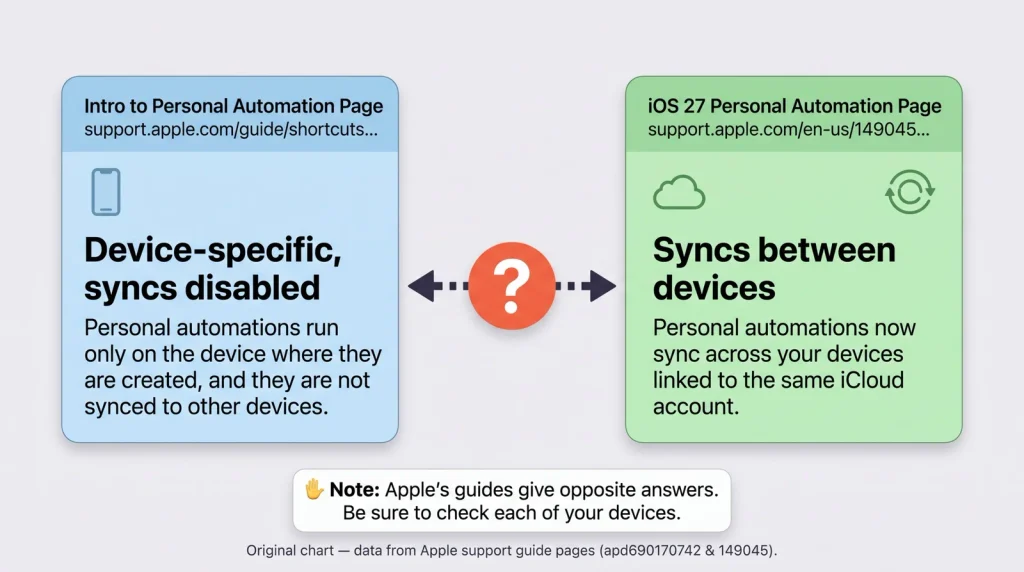
Three conflicts matter when you build an automation.
Device-specific or synced. The intro page says automation shortcuts are specific to a device. It says the automation is backed up to iCloud but syncs to other devices with the automation disabled. The iOS 27 page says automations are built into shortcuts, including shared ones, and sync between devices. Both are Apple documents and they describe different behavior. My advice: after you build an automation on one iPhone, open Shortcuts on your other devices. Check its state before you assume either description.
Two different creation flows. The Add automations page describes tapping the Automation icon, then Create Personal Automation, then choosing a trigger such as Time of Day or Arrive. The iOS 27 page describes automations as part of the shortcut editor. The pages I read do not reconcile the two, so button names on your screen may differ from the steps in the older guide.
A trigger list that is out of date. The Setting triggers page omits the three new triggers, as covered above. Use the event triggers page for those.
Which triggers can run without asking?
Apple says that when an event occurs you receive a notification asking you to run the automation. It also says you can enable an automation to run without asking. That is the only statement I found. The pages readable as text do not say which of the 23 triggers permit the run-without-asking option. The Apple page on enabling or disabling an automation rendered only as the guide’s landing page when I fetched it.
Apple has not confirmed which triggers allow it. Until it does, test each trigger that matters to you. Trigger the event, then see whether the automation runs on its own or waits for a tap.
Which iPhone automation trigger should you use?
This table is my recommendation, built only on options Apple documents.
| Goal | Trigger to start with | Condition Apple documents |
|---|---|---|
| Change settings at bedtime | Sleep, Wind Down Begins | A sleep schedule in the Health app |
| Run something when a desk keyboard connects | Keyboard, Connected | iOS and iPadOS only |
| React to a screenshot | Screenshot | Saved to Photos, Files or the Clipboard |
| Respond to one app’s alert | Notification with an app and a Title filter | Filter match behavior is not documented |
| Run something on arriving at work | Arrive with a Time Range | Boundary adjustable on the map |
| Start a routine in the car | CarPlay, Connects | Device connects to CarPlay |
| Protect battery | Battery Level, Falls Below | None listed |
| Match a mode to your phone state | Focus, When Turning On | None listed |
| React to a payment tap | Transaction, When I tap | Wallet transactions |
Frequently asked questions
How many items are on the iPhone automation triggers list?
By my count of Apple’s Shortcuts User Guide, iOS 27 offers 23: eight event triggers, three travel triggers, two communication triggers, one transaction trigger and nine setting triggers. The pages I read give no single total, and the five trigger pages are separate.
Which iPhone automation triggers are new in iOS 27?
Apple lists three as new: Notification, Keyboard and Screenshot. Keyboard is iOS and iPadOS only. Screenshot is listed for iOS, iPadOS and macOS.
Does the keyboard automation trigger work on a Mac?
No. Apple lists the Keyboard trigger as iOS and iPadOS only. Apple names macOS only for the Screenshot trigger, among the three new ones.
Can an iPhone automation need more than one condition?
Yes, on communication triggers. When you add several criteria to an Email or Message trigger, Apple says all of them must be met before the automation runs.
Do iPhone automations sync to my other devices?
Apple’s pages disagree. One says automations are specific to a device and sync to other devices disabled. The iOS 27 page says automations sync between devices. Check the Shortcuts app on each device after you create one.
Verdict
The Notification trigger is the most useful of the new triggers, because it turns any app’s alert into an event you control. It is also the one Apple documents least, so test your filters. The Keyboard trigger is a niche tool for people who dock a keyboard. The Screenshot trigger is only as good as the shortcut behind it.
My advice is to start with Sleep, Arrive and Focus, where Apple documents the conditions, and treat Notification and Keyboard as experiments. Apple should publish one list of every trigger, with the platform and run-without-asking behavior in one table. Until then, this iPhone automation triggers list is the single list. Pick one trigger from the tables above and test it on your own iPhone today. Note whether it runs on its own or waits for your tap.