7 Things to Check When Mac Shortcuts Automations Fail
7 Things to Check When Mac Shortcuts Automations Fail
When Mac Shortcuts automations fail, the cause is usually one of seven things Apple documents in its own guides. Check four first: an automation synced from another device arrives switched off, a triggered automation waits for your approval, an action may need permission, and Allow Running When Locked decides whether it asks at all. If none of those explains a Mac shortcuts automation not running, the macOS 27 release notes come next.
Key takeaways
- Apple says automations are specific to a device and sync to other devices disabled, so one built on your iPhone stays off on your Mac.
- By default, Apple says a triggered automation sends a notification asking you to run it. A banner you never click looks like a failure.
- Allow Running When Locked sits under Edit, Info, Privacy. Apple says that with it on, the automation will not notify you.
- Apple’s list of triggers that can run without asking does not include the folder and display examples from its macOS Tahoe announcement.
- Apple’s macOS 27 release notes list Battery Level and Charger automations as fixed.
- Apple’s Mac pages do not say whether the Mac must be awake or unlocked for a trigger to fire.
Why do Mac Shortcuts automations fail?
Apple’s June 2025 macOS Tahoe 26 announcement said users can now run shortcuts automatically on macOS, such as at a specific time of day, or when saving a file to a folder or connecting a display. The feature is recent, and the documentation is short.
Apple’s Shortcuts User Guide for Mac has an Automations section with two pages: the introduction to shortcuts with automations and Add automations. Those pages, plus the guide’s privacy and scripting pages, hold the documented reasons an automation stays silent. The order below is our judgment about what is cheapest to check first, not Apple’s.
We read the current guide, labeled for macOS 27 Golden Gate, and did not test on hardware. The steps are Apple’s; the inferences we flag are ours.
1. Is the automation turned on for this Mac?
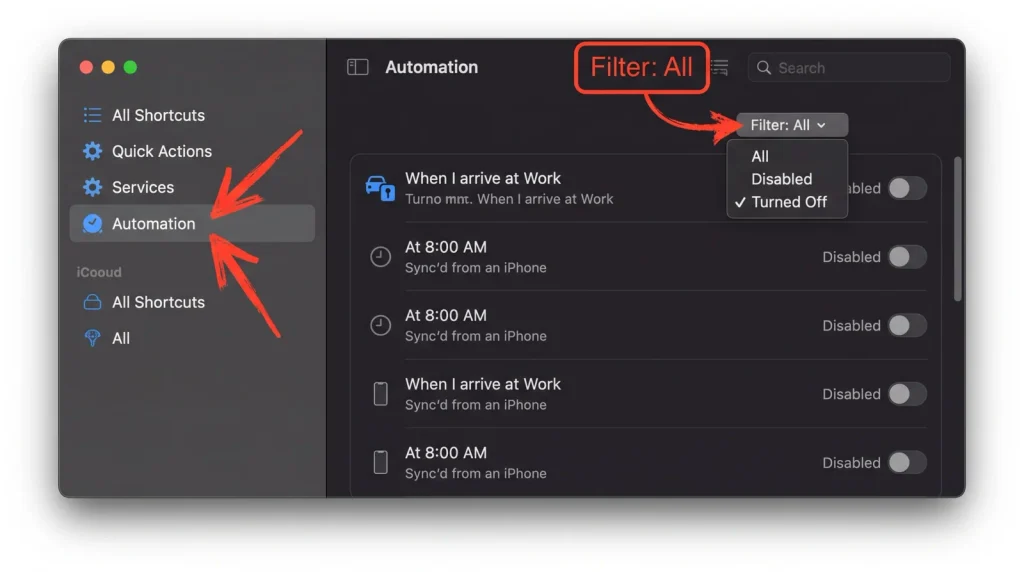
Apple states that automation shortcuts are specific to a device. The same page says an automation is backed up to iCloud but syncs to other devices with the automation disabled. If you built the automation on an iPhone or iPad, the copy on your Mac arrives switched off.
To see what your Mac has, follow these steps:
- Open the Shortcuts app on your Mac.
- Click Automation in the sidebar.
- Click the filter button and choose Turned Off.
Apple gives no separate step for switching an automation back on, but it does document the route to the trigger. Click the shortcut, click Edit, then Automation, and confirm a trigger such as Time of Day or Arrive is attached. If it is missing, add it again from the same place.
Apple’s sync page (Shortcuts > Settings, General pane, iCloud Sync) does not mention automations, so toggling sync is not a documented fix.
2. Is the automation waiting for your approval?
Apple’s introduction says that after you create a shortcut and add an automation, a notification asks you to run it when the event occurs. An automation that fires and then asks permission is working as described, even though it feels broken.
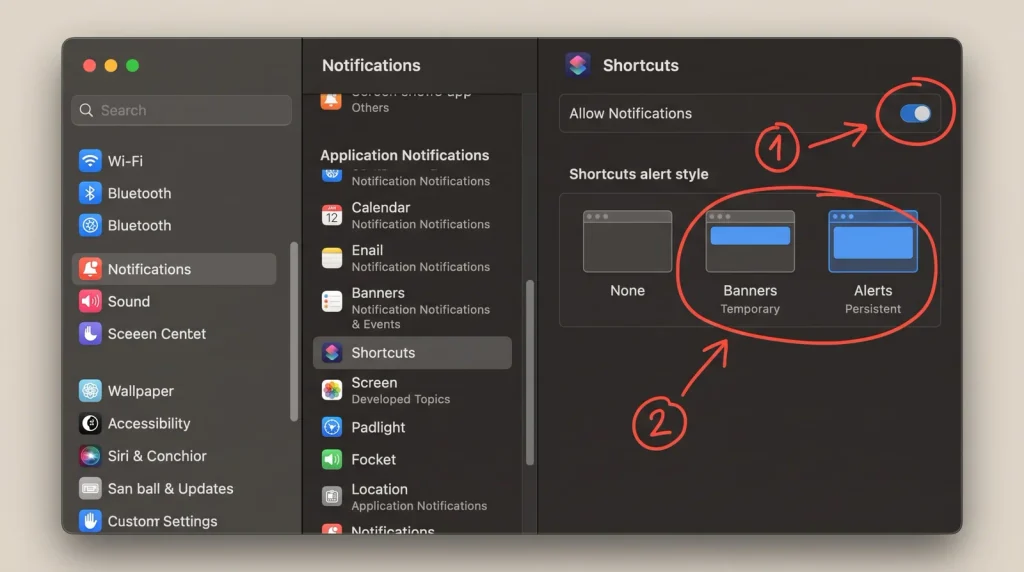
The failure is easy to miss. Apple’s notifications guide gives each app an Allow Notifications switch and an Alert Style, which can be Temporary (disappears after a while) or Persistent (stays until dismissed). In our reading, a banner that vanishes before you act means the automation does not run, and Persistent buys you time. Apple does not say this fixes missed automations.
The same pane can also pause notifications while the display sleeps or the screen is locked. If yours does, an approval request that arrives while you are away may never reach you. That link is our inference, not Apple’s.
Here is how to review the settings:
- Open System Settings and click Notifications in the sidebar.
- Check the options for when the display is sleeping and when the screen is locked.
- Scroll to Application Notifications and select the Shortcuts app if it is listed.
- Confirm Allow Notifications is on and set the Alert Style.
Apple’s page does not name Shortcuts specifically. Separately, Apple’s macOS 27.2 release candidate notes say a clean install may not prompt for notifications in some apps. Shortcuts is not among the apps named, and the workaround is the same pane.
3. Should it run without asking? Check Allow Running When Locked
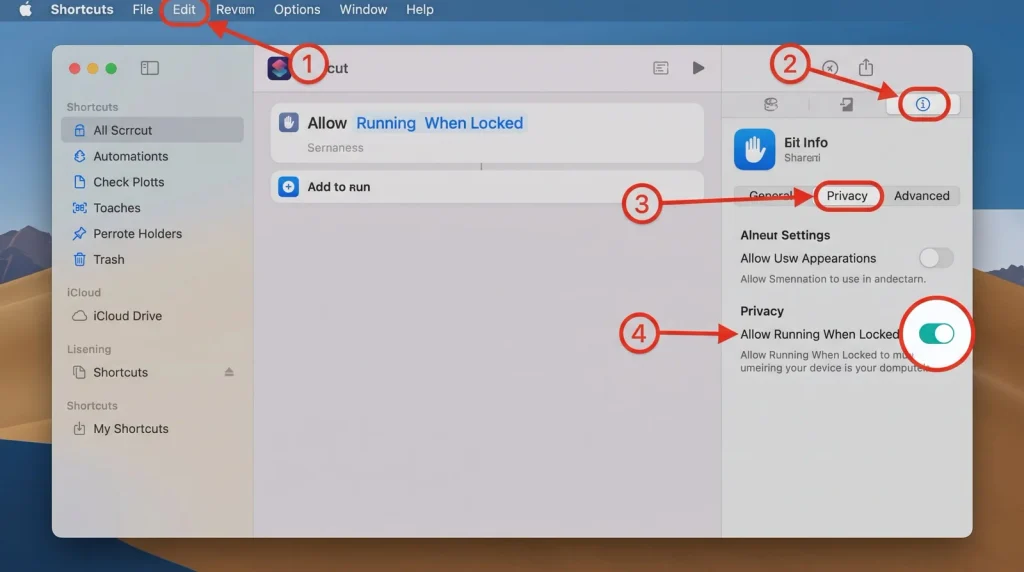
Apple says some personal automations can run without asking you for confirmation. It files this under the heading “Enable an automation to run without asking,” and the control is Allow Running When Locked.
To turn it on, take these steps:
- Open the Shortcuts app and click the shortcut.
- Click Edit, then the Info button.
- Click Privacy and enable Allow Running When Locked.
Apple adds that the automation will not notify you when it is triggered. That is the trade: you lose the approval prompt, and you also lose the banner that tells you something ran.
The label mentions a locked Mac, but Apple frames it only as the way to skip confirmation, so we would not read more into it. Start with low-risk automations, not ones that move files or run scripts.
4. Does an individual action need permission?
The same Apple page carries a short note: you also may need to set individual actions to run automatically. An automation may pass the trigger and the approval step and still need a setting on one action.
Apple’s privacy page describes how that looks. When a Privacy dialog asks for access to data, you can choose Allow Once, Always Allow or Don’t Allow. After Always Allow, the Shortcuts app will not ask the next time you run the shortcut. A trigger that fires while you are away cannot answer a dialog, so our inference is that a half-working automation stops there. Apple does not say so directly.
A practical sequence follows from the documented pieces:
- Run the shortcut by hand from the Shortcuts app so each Privacy dialog appears while you are present.
- Choose Always Allow for the data you trust the shortcut to use.
- Re-test the trigger.
To undo a grant, double-click the shortcut, click the Details button, then click Privacy and deselect an option such as Location or Safari. If there is no Privacy tab, Apple says the shortcut has no access to your data. Reset Privacy removes access to all data for that shortcut. Apple’s testing page also suggests adding a Quick Look action between steps to see what content moves from one action to the next. That helps find the step that fails.
5. Is a Shortcuts setting blocking scripts or large data?
Shortcuts that include scripts have their own gate on the Mac. Apple’s advanced privacy page says to choose Shortcuts > Settings from the menu bar, then select Allow Running Scripts in the Advanced tab.
Apple attaches a warning to it: running shortcuts with scripts could cause data loss. It also says you should never run a shortcut containing JavaScript you do not trust.
The Advanced tab holds a second switch. Apple’s basic privacy page says some shortcuts need access to large amounts of data, and those only work after you select Allow Sharing Large Amounts of Data. Neither setting is specific to automations, so if a shortcut with a script or a big data transfer fails even when you run it by hand, check both first.
6. Can your trigger run without asking?
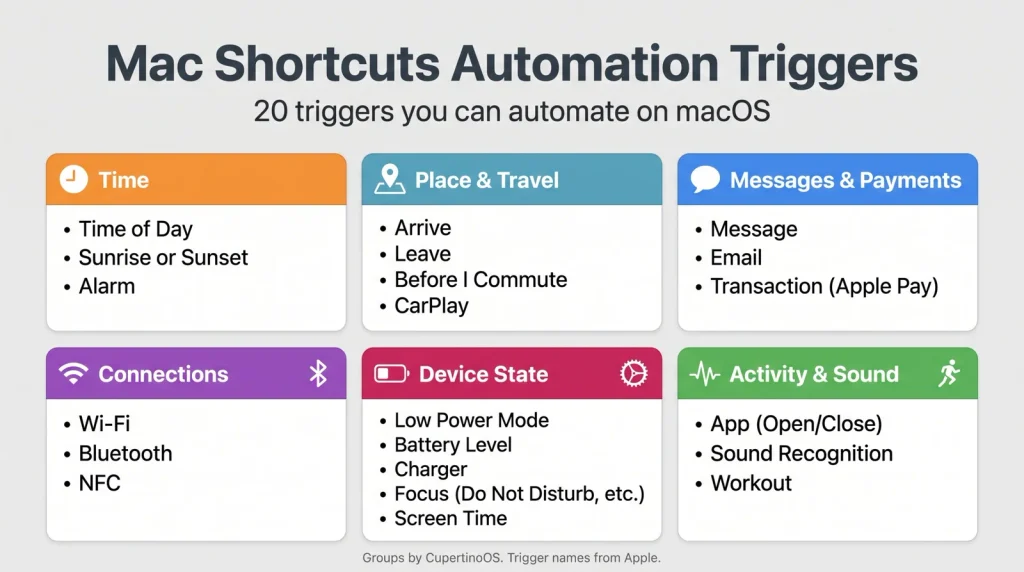
Apple’s Add automations page lists 20 automations that can run automatically. The list sits under the heading about running without asking, so we read it as the triggers that can skip the confirmation step, not as every trigger the Mac offers. We have grouped them below for scanning; the grouping is ours, and the trigger names are Apple’s.
| Our group | Triggers Apple lists as able to run automatically |
|---|---|
| Time | Time of Day, Alarm, Sleep |
| Place and travel | Arrive, Leave, CarPlay |
| Messages and payments | Email, Message, Transaction |
| Connections | Wi-Fi, Bluetooth, NFC |
| Device state | Airplane Mode, Do Not Disturb, Low Power Mode, Battery Level, Charger |
| Activity and sound | Apple Watch Workout, App, Sound Recognition |
One gap stands out. Apple’s Tahoe announcement gave saving a file to a folder and connecting a display as examples of automatic triggers, and neither appears in this list. Apple does not explain the difference.
If your trigger is not in the table, Apple does not say whether it can skip confirmation, and we cannot confirm a bug. Keep the confirmation on for those triggers and approve the notification. To see which trigger a shortcut uses, click Edit, then Automation.
7. Is it a known macOS 27 issue?
Apple’s macOS 27 Golden Gate release notes include a Shortcuts section with resolved issues. One reads: “Fixed: Battery Level and Charger automations might not work on macOS.” Apple kept these notes through the macOS 27 betas and does not say which builds had the problem, so it may have affected only pre-release versions. If those triggers fail for you, confirm you are on a current build.
The same notes fix the Use Model action, which might fail with the On-Device option for some output types. That matters if your automation fails only at that step.
Apple’s macOS 27.2 release candidate notes list one Shortcuts known issue: Describe a Shortcut might fail with the error “Something went wrong. Try again later.” That affects building a shortcut from a description, not running an existing automation. It is still listed as open in the release candidate, so we would not count on 27.2 fixing it. Build the shortcut by hand in the meantime.
To update, open System Settings, click General in the sidebar and choose Software Update. Apple’s newsroom said the new software features began rolling out across iOS 27, iPadOS 27 and macOS 27 on 14 September 2026.
What do Apple’s Mac pages leave unsaid?
The pages we read do not state whether a Mac must be awake, logged in or unlocked for an automation to fire. The only locked-state control they document is Allow Running When Locked. The notification settings in Check 2 add a second unknown, because a paused approval request looks the same as a trigger that never fired.
You can measure it with a low-stakes test. This is our procedure, not Apple’s.
- Create a harmless shortcut that changes something you can see.
- Click Edit, then Automation, and choose Time of Day for five minutes from now.
- Enable Allow Running When Locked, lock the screen and wait.
- Repeat with the Mac awake and unlocked, then with the setting off.
If the locked run fails and the unlocked run works, you have found a boundary Apple does not document.
Which symptom points to which fix?
| Symptom | Likely cause | Where to look |
|---|---|---|
| Automation built on iPhone never fires on the Mac | Automations sync to other devices disabled | Automation sidebar, Turned Off filter |
| A banner asks you to run it | Default confirmation notification | Allow Running When Locked under Info > Privacy |
| No banner appears | App notification settings, or notifications paused while locked or asleep | System Settings > Notifications |
| Fires, then stops at a data prompt | Privacy dialog waiting for an answer | Run by hand, choose Always Allow |
| Works when run by hand, fails from a trigger | Approval step or a per-action setting | Allow Running When Locked, action settings |
| Fails even when run by hand | Script or large-data setting off | Shortcuts > Settings > Advanced |
| Battery Level or Charger automation silent | Listed as fixed in macOS 27 release notes | Software Update |
| Describe a Shortcut says “Something went wrong” | Known issue in macOS 27.2 RC notes | Build the shortcut by hand |
Frequently asked questions
Why does my Mac Shortcuts automation ask me to run it every time?
Apple says that when an automation’s event occurs you receive a notification asking you to run it. That is the default behavior. Some personal automations can run without asking. Open the shortcut, click Edit, then the Info button, click Privacy and enable Allow Running When Locked.
Do automations from my iPhone work on my Mac?
Apple says automation shortcuts are specific to a device and that an automation synced to another device arrives disabled. The shortcut itself can sync through iCloud. The automation needs to be turned on separately on the Mac, and to run without asking, its trigger must be one Apple lists for that.
Which triggers can run without asking on a Mac?
Apple lists 20, in its section on running without asking, from Time of Day, Arrive and Leave to Battery Level, Charger and Sound Recognition. Individual actions may still need their own setting to run automatically.
Why do my Mac Shortcuts automations fail only when I am away?
Apple’s Mac pages do not say whether the Mac must be awake or unlocked for a trigger to fire. The approval notification may also be paused, because Notifications settings can pause alerts while the display sleeps or the screen is locked. Test a harmless Time of Day automation locked and unlocked to find out.
Will updating macOS fix a broken automation?
It can for specific cases. Apple’s macOS 27 release notes list a fix for Battery Level and Charger automations on the Mac, though the notes do not say whether the problem reached public builds. Update through System Settings, General, Software Update. Apple does not claim an update fixes every automation problem.
Bottom line
Start with the two free checks. Confirm the automation is turned on for this Mac, then look for an approval banner you have been missing or dismissing. Together they cover what Apple documents most clearly about why Mac Shortcuts automations fail, and neither needs a setting change.
Apple’s Mac automation pages are thin, so treat the macOS 27 release notes as part of the troubleshooting manual. Use Allow Running When Locked only where the worst outcome is harmless, and keep it off for anything that runs scripts or touches files. Run the five-minute locked-versus-unlocked test before you trust a trigger with real work.