AirDrop Not Working? 1 Easy, Secret Fix for Mac and iPhone
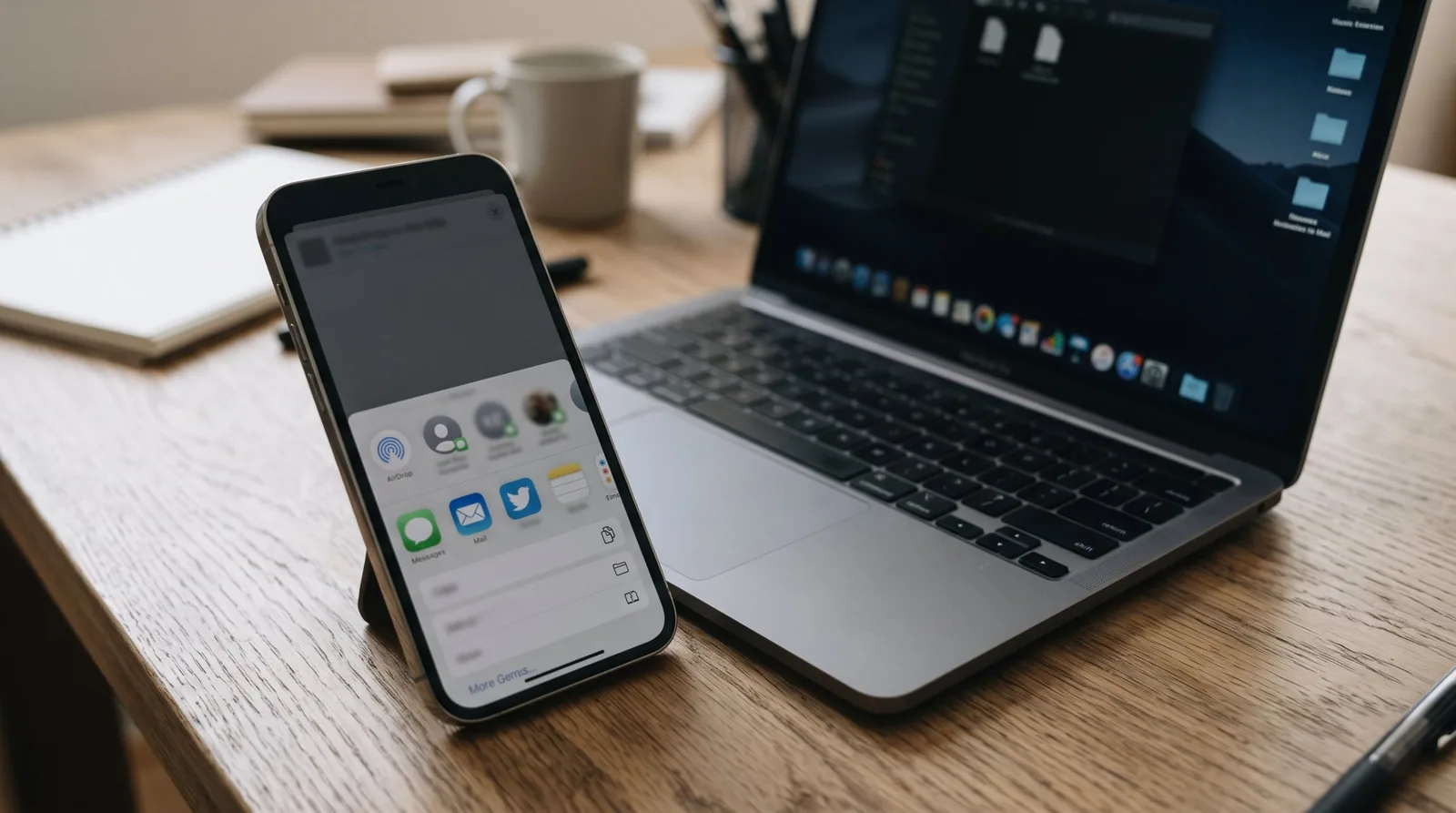
AirDrop Not Working iPhone to Mac? 1 Easy Fix to Try First
If AirDrop is not working from iPhone to Mac, the one easy fix to try first is to make the Mac recognize your iPhone’s Apple Account. On your own Mac, sign in to the same Apple Account. On a work or family Mac, put your Apple Account email or phone number on your contact card there.
Key takeaways
- Between devices on the same Apple Account, Apple says items sent by AirDrop are accepted and saved automatically.
- With iOS 26.2, iPadOS 26.2, macOS 26.2 or later, a sender who isn’t in your contacts must use an AirDrop code.
- On an iPhone with iOS 16.2 or later, Everyone for 10 Minutes changes back after 10 minutes.
- Both devices need Wi-Fi and Bluetooth turned on and must be within 30 feet (10 meters) of each other.
- On a Mac, AirDrop’s receiving setting lives in System Settings > General > AirDrop & Continuity.
The 1 easy fix: make the Mac recognize your iPhone’s Apple Account
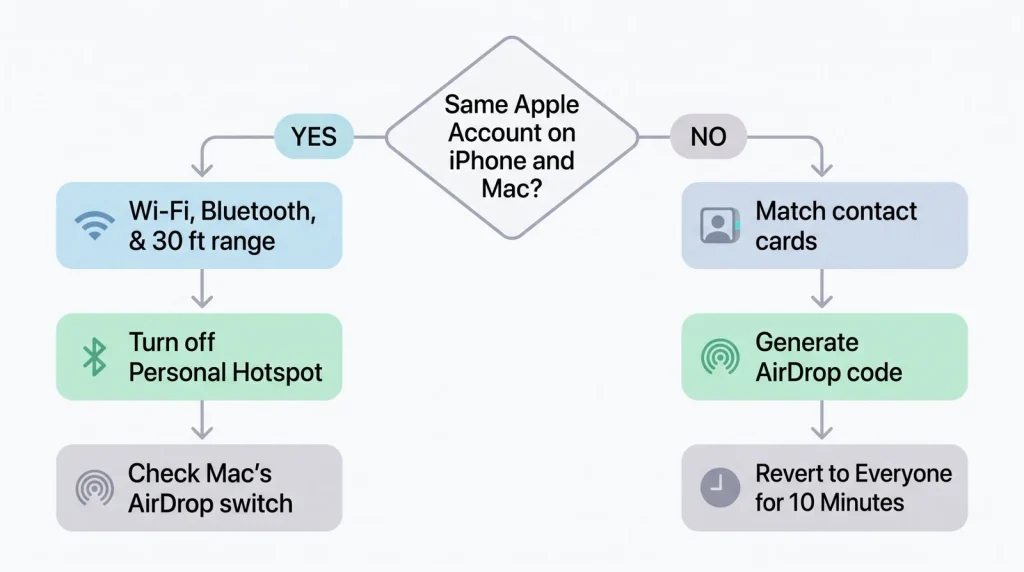
Flow chart that splits AirDrop troubleshooting between iPhone and Mac by whether both devices use the same Apple Account
For AirDrop not working iPhone to Mac, we put the account first because it decides which of Apple’s rules apply. When the iPhone and the Mac share an Apple Account, Apple’s Mac User Guide says the item is automatically accepted. Our reading of Apple’s rules: a Mac on a different Apple Account treats your iPhone like anyone else’s device.
A personal MacBook is usually signed in to your own Apple Account. A work MacBook or a shared family iMac often is not.
Your own Mac: use the same Apple Account
Apple’s advice for sending between your own devices is direct: sign in to the same Apple Account on both. Apple says items are then accepted and saved automatically, so there is no prompt to answer and no contact card to match.
If your iPhone and MacBook already share an Apple Account, AirDrop not working iPhone to Mac has another cause. Skip ahead to the basic checks.
A work or family Mac: fix your contact card
Signing a work Mac in to your personal Apple Account is rarely practical, so the contact-card rule matters instead. Apple’s Mac guide spells out the rule for recipients who accept items only from contacts. You must be in their contacts list. They also need your Apple Account email address or phone number on your contact card.
On a work MacBook, that means the Mac’s Contacts app needs a card for you with the email or phone number your iPhone’s Apple Account uses. Our reading of that rule: a card holding only your work email won’t match an iPhone signed in with a personal address. That fits many reports of AirDrop Contacts Only not working.
How to apply the fix, step by step
- Find out whether the Mac uses your Apple Account or someone else’s.
- If it’s your own Mac, make sure the iPhone and the Mac are signed in to the same Apple Account, then try again.
- If the Mac uses a different Apple Account, open the Contacts app on the Mac.
- Find the card for you, and add the email address or phone number your iPhone’s Apple Account uses.
- Send the item from the iPhone again.
- If the Mac shows a code prompt instead, click Get AirDrop Code on the Mac and enter that code on the iPhone.
No time to edit contacts? Switch the Mac’s receiving setting to Everyone while you send, then switch it back. Apple notes the Contacts Only option needs iOS 10, iPadOS 13, macOS 10.12 or later. A device on older software has to use Everyone to receive.
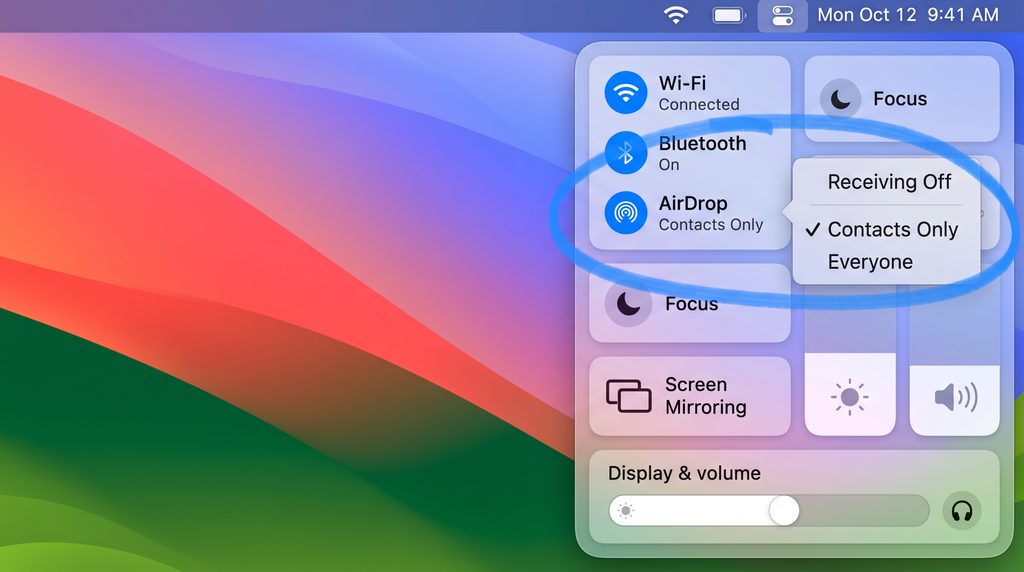
On a Mac the choice is Everyone, while iPhone offers Everyone for 10 Minutes.
Why the fix works: the rules AirDrop checks
AirDrop codes since iOS 26.2 and macOS 26.2
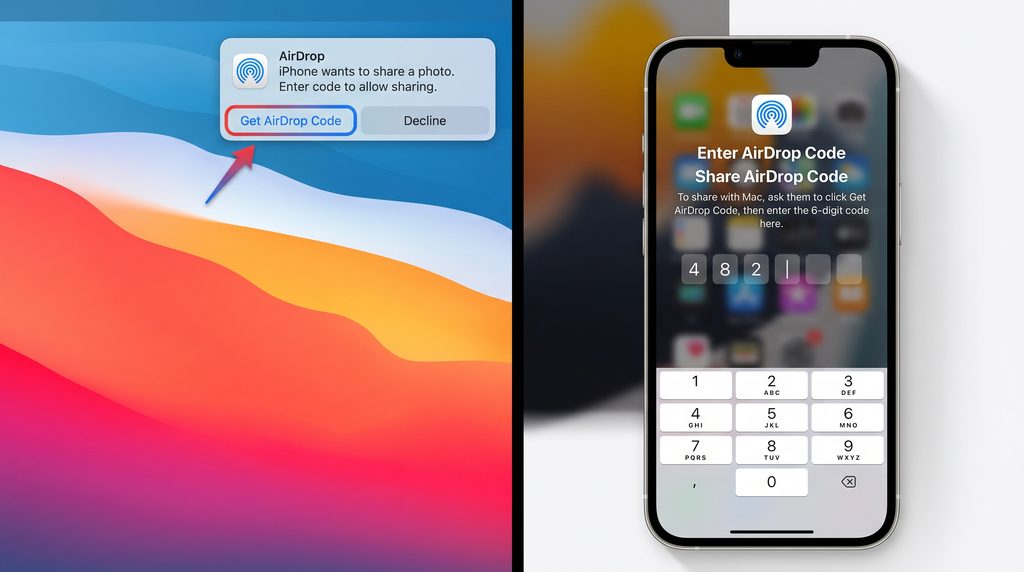
The code rule is newer. Apple’s guide says that with iOS 26.2, iPadOS 26.2, macOS 26.2 or later, someone who isn’t in your contacts must use an AirDrop code to send you an item.
This is the AirDrop code Mac users now meet. When the Mac shows a notification that a code is needed, click Get AirDrop Code and share it. The sender types it on the iPhone.
Our reading: a sender who is already in the Mac’s contacts doesn’t fall under this rule. That’s one more reason the contact-card fix comes first.
The code isn’t a one-off. Apple says you can keep sharing with that person for 30 days without another code.
If you want to end that early, Apple points to the Contacts app. Find the person in the Other Known list and select Forget This Person.
Apple’s iPhone article phrases the trigger as both devices using iOS 26.2 or later. Apple has not documented what happens when only one side runs 26.2 or later. If one device is older, update both before you troubleshoot further.
Everyone for 10 Minutes switches back on the iPhone
When you send from the Mac to the iPhone, the iPhone is the receiver. Its Everyone option isn’t permanent. Apple says that in iOS 16.2 and later, Everyone for 10 Minutes changes after 10 minutes.
What it changes to depends on the iPhone. If it is signed in to an Apple Account, it reverts to Contacts Only. If it isn’t signed in, it reverts to Receiving Off.
Our reading: that explains many “it worked an hour ago” reports. The iPhone went back to Contacts Only, and the Mac’s account isn’t in its contacts. Apple’s Mac guide doesn’t say whether the Mac’s Everyone option expires.
Did the fix work? Match what you see
Use this table to narrow down AirDrop not working iPhone to Mac after you’ve tried the account fix.
| What you see | Same Apple Account? | Most likely cause | What to do |
|---|---|---|---|
| A prompt asks for an AirDrop code | No | The Mac’s owner doesn’t have you in their contacts (iOS 26.2 and macOS 26.2 or later) | Fix your contact card on the Mac, or enter the code the Mac shows |
| The Mac never appears in the iPhone’s AirDrop list | No | The Mac is set to Contacts Only and your contact card doesn’t match | Fix your contact card on the Mac, or set the Mac to Everyone |
| The Mac never appears in the iPhone’s AirDrop list | Yes | Wi-Fi or Bluetooth off, devices too far apart, or iPhone Personal Hotspot on | Run the basic checks below |
| It worked earlier today, then stopped | No | The iPhone’s Everyone for 10 Minutes setting switched back on its own | Set it again on the receiving iPhone |
| The transfer seems to finish but the file is nowhere | Either | The accept prompt or the saved file is in an unexpected place | Check the Mac’s Finder window or Downloads folder |
Mac not showing up in AirDrop on iPhone: the basic checks
If the account side is sorted and the Mac still won’t appear, go through Apple’s basic requirements.
Wi-Fi, Bluetooth and distance
Apple’s AirDrop guide for Mac lists two conditions before anything else. Both the sender and the recipient need Wi-Fi and Bluetooth turned on. The devices also need to be within 30 feet (10 meters) of each other.
Our view: a docked MacBook running on Ethernet with Wi-Fi switched off is an easy one to miss, so check the Mac’s Wi-Fi icon first.
Personal Hotspot on the iPhone
Apple’s iPhone article, How to use AirDrop on your iPhone or iPad, includes a plain instruction in its before-you-begin list: if either device has Personal Hotspot on, disconnect.
The Mac’s AirDrop switch
On a Mac, AirDrop has its own control in Control Center. Apple’s guide says to click the Control Center status menu in the menu bar, then click the AirDrop icon. When the icon is blue, AirDrop is on.
System Settings > General > AirDrop & Continuity
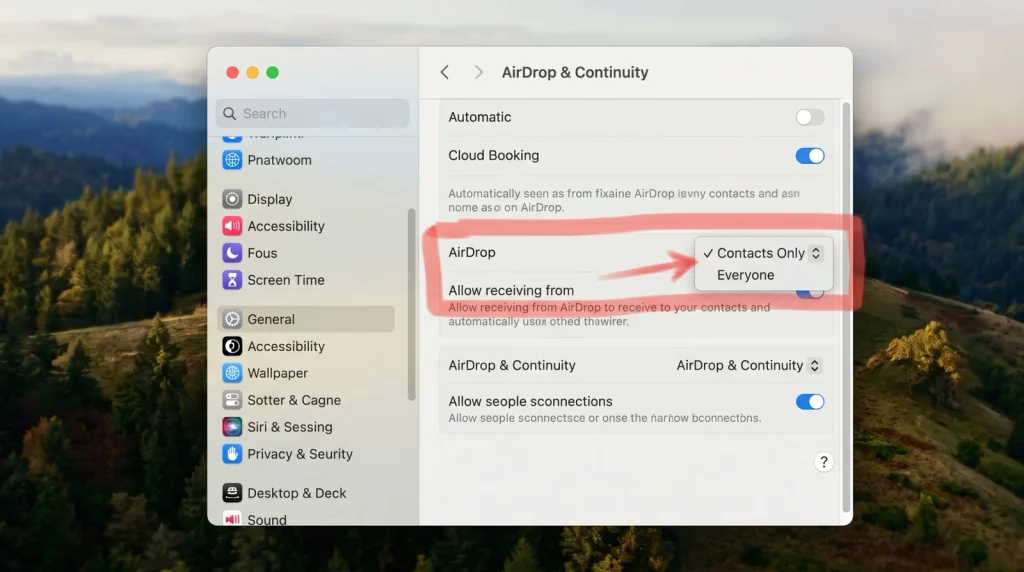
Apple’s path is System Settings, then General in the sidebar, then AirDrop & Continuity.
Apple’s AirDrop & Continuity settings page gives the path: System Settings > General > AirDrop & Continuity, with General in the sidebar. You may need to scroll down to find it.
The AirDrop setting there chooses who can send files to you from nearby Apple devices. Check that it shows Contacts Only or Everyone.
Open the AirDrop window in Finder
Apple describes a second way to use AirDrop on a Mac. Open a Finder window and click AirDrop in the sidebar. You can then drag an item onto the person you want to send it to.
If you opened AirDrop in the Finder, Apple says the accept or decline prompt appears there rather than in Notification Center.
The Mac firewall
Apple’s firewall guide gives the path: Apple menu > System Settings > Network > Firewall, with Network in the sidebar. You may need to scroll down.
Among the firewall’s options, Apple’s guide describes a setting that blocks all incoming connections. That page doesn’t mention AirDrop by name. Our inference: if you suspect a Mac firewall blocking AirDrop, turning that strict option off for a test is a reasonable step. Turn it back on afterward if your workplace requires it.
On a managed work Mac, ask IT before you change firewall settings.
The transfer finished, so where is the file?
Sometimes AirDrop worked, and the file just landed somewhere unexpected. Apple’s guide says that on a Mac, some items are automatically saved in the Downloads folder. Check there before you send the file again.
If you’re receiving from someone else’s account, remember you have to accept first. Apple’s instruction is to tap or click Accept on the AirDrop notification. If the AirDrop window was open in Finder, look for that prompt in Finder.
AirDrop stuck on Waiting from iPhone to Mac: a worked example
Here is a real case we worked through. Both devices used the same Apple Account, and Mac to iPhone worked. iPhone to Mac sat on Waiting, even with the Mac firewall off. The next step was to see what the Mac logs when the transfer stalls.
Two steps use Terminal, which Apple’s guide places in the /Applications/Utilities folder.
Step 1: Check that the Mac can save to Downloads
Apple says a Mac saves some AirDrop items in Downloads. Our reasoning: if that folder is missing or locked, the transfer has nowhere to land. In Terminal, run: ls -ld ~/Downloads
- The output should start with drwx and show your username.
- If it says No such file or directory, run mkdir ~/Downloads and send again.
Step 2: Watch the Mac’s log while you send
Apple’s developer documentation names the log tool for reading log messages from the command line. This command follows Apple’s sharing subsystem and keeps only error-type lines:
log stream –predicate ‘subsystem == “com.apple.sharing”‘ –style compact | grep –line-buffered -i -E “error|fail|denied|reject|decline”
- Leave it running and send a photo from the iPhone.
- When the iPhone shows Waiting, wait about 10 seconds.
- Press Control-C, then read the lines it printed.
If the log shows nothing: reset the iPhone’s network settings
Our reading: a quiet log points to the iPhone. Go to Settings > General > Transfer or Reset iPhone > Reset > Reset Network Settings. Apple says this resets all Wi-Fi networks and passwords, cellular settings, and VPN and APN settings.
If someone else’s iPhone is nearby, have them AirDrop something to your Mac. If theirs arrives and yours doesn’t, the problem is your iPhone.
What the log showed: the Mac rejected the iPhone
In our case the log named the cause: the Mac turned the iPhone away as unauthorized.
- The Mac recognized the iPhone as a device on the same account (log flags MyMe and MyiCloud).
- It failed to decrypt the iPhone’s identity data with error -6727, which Apple’s open-source networking code defines as “not found”. Our reading: the key the Mac needs to verify the iPhone was missing or out of date.
- When the photo arrived, the Mac logged Sending unauthorized error response and dropped it, so the iPhone sat on Waiting.
- Mac to iPhone still worked. Our reading: only the Mac’s copy of the iPhone’s keys was broken.
- Lines reading Remove URL failed were cleanup after the failure.
The firewall and the VPN we had switched off played no part, so we turned both back on.
Fix an unauthorized iPhone, quickest first
- Set date and time automatically on both devices. Our reasoning: identity checks depend on the clock.
- Mac: in System Settings > General > Date & Time, turn on Set time and date automatically.
- iPhone: in Settings > General > Date & Time, turn on Set Time Automatically.
- Turn on iCloud Keychain sync on both devices. Apple says it keeps passwords and other secure information updated across your devices.
- Mac: in System Settings > your name > iCloud > Passwords, turn on Sync this Mac.
- iPhone: in Settings > your name > iCloud > Passwords, turn on Sync this iPhone.
- Sign out of your Apple Account on the Mac, then back in. We expect this to fix it, because signing in again sets up the Mac’s account keys.
- Let iCloud Drive and Photos finish syncing first.
- In System Settings, click your name at the top of the sidebar, then Sign Out. Keep copies of your iCloud data when asked.
- Restart the Mac, sign back in, wait a few minutes, then AirDrop from the iPhone again.
A checklist for AirDrop not working iPhone to Mac, fix first
Work through these in order. Steps 1 to 3 are the account fix, steps 4 to 9 are Apple’s basic checks, and step 10 is our worked example.
- Check whether the iPhone and the Mac use the same Apple Account.
- If they don’t, add your Apple Account email or phone number to your card in the Mac’s Contacts, or set the Mac to Everyone for the transfer.
- If a code prompt appears, click Get AirDrop Code on the Mac and enter that code on the iPhone.
- On both devices, confirm Wi-Fi and Bluetooth are on, and keep them within 30 feet (10 meters).
- On the iPhone, turn off Personal Hotspot if it’s on.
- On the Mac, open Control Center and check that the AirDrop icon is blue.
- On the Mac, open System Settings > General > AirDrop & Continuity and set AirDrop to Contacts Only or Everyone.
- Open a Finder window and click AirDrop in the sidebar so the accept prompt shows there.
- If nothing has worked, restart both devices and try again, as Apple recommends.
- If the iPhone still sits on Waiting, read the Mac’s log and follow the fixes in the worked example above.
What this guide can’t tell you
Apple’s AirDrop pages don’t give a separate Bluetooth troubleshooting path, and the firewall page doesn’t name AirDrop. Apple also doesn’t document the log lines in our worked example, so every reading of them is marked as ours. If every step fails between two devices on the same Apple Account, contact Apple Support.
FAQ
Why does my iPhone not see my MacBook in AirDrop?
Check that Wi-Fi and Bluetooth are on for both devices and that they are within 30 feet (10 meters). Turn off Personal Hotspot on the iPhone. On the MacBook, make sure the AirDrop icon in Control Center is blue and receiving is set to Contacts Only or Everyone.
Why is my Mac asking for an AirDrop code from my own iPhone?
With iOS 26.2 and macOS 26.2 or later, a sender who isn’t in the receiver’s contacts must use an AirDrop code. If your Mac uses a different Apple Account from your iPhone, it treats the iPhone like anyone else’s. Click Get AirDrop Code on the Mac and enter the code on the iPhone.
How long does an AirDrop code last?
Apple says that after the code is used, you can keep sharing with that person for 30 days without another code. To end it sooner, open the Contacts app, find the person in the Other Known list and select Forget This Person.
Do I need to accept AirDrop files between my own iPhone and Mac?
No, not when both are signed in to the same Apple Account. Apple says items sent between your own devices on the same Apple Account are accepted and saved automatically. On a Mac, some items are saved in the Downloads folder.
Why did AirDrop stop working after 10 minutes?
On an iPhone with iOS 16.2 or later, Everyone for 10 Minutes changes after 10 minutes. It reverts to Contacts Only if the iPhone is signed in to an Apple Account, or to Receiving Off if it isn’t. Set it again before the next transfer.
Bottom line
With AirDrop not working iPhone to Mac, try the account fix before you restart anything. If the Mac is yours, put both devices on the same Apple Account. If it belongs to work or family, put your Apple Account email or phone number on your contact card there, or use the AirDrop code, because that rule is what blocks a Mac on another account. Only then move on to radios, distance, Personal Hotspot and restarts. If the iPhone still sits on Waiting, read the Mac’s log before you reset anything else.
Sources
- Apple Support, Mac User Guide: Use AirDrop to send items to nearby Apple devices — https://support.apple.com/guide/mac-help/use-airdrop-to-send-items-to-nearby-devices-mh35868/mac
- Apple Support: Use AirDrop to send items to nearby Apple devices (article 102538) — https://support.apple.com/102538
- Apple Support: How to use AirDrop on your iPhone or iPad (article 119857) — https://support.apple.com/119857
- Apple Support, Mac User Guide: Change AirDrop & Continuity settings on Mac — https://support.apple.com/guide/mac-help/mchl6a407f99/mac
- Apple Support, Mac User Guide: Change Firewall settings on Mac — https://support.apple.com/guide/mac-help/change-firewall-settings-on-mac-mh11783/mac
- Apple Support, Terminal User Guide: Open or quit Terminal on Mac — https://support.apple.com/guide/terminal/apd5265185d-f365-44cb-8b09-71a064a42125/mac
- Apple Developer Documentation: Viewing Log Messages — https://developer.apple.com/documentation/os/viewing-log-messages
- Apple open source, mDNSResponder: CommonServices.h (error codes) — https://github.com/apple-oss-distributions/mDNSResponder/blob/main/mDNSShared/CommonServices.h
- Apple Support: If you can’t connect to Wi-Fi on your iPhone or iPad (article 111786) — https://support.apple.com/111786
- Apple Support, Mac User Guide: Set the date and time automatically on Mac — https://support.apple.com/guide/mac-help/mchlp2996/mac
- Apple Support: If you can’t change the time or time zone on your Apple device (article 101619) — https://support.apple.com/101619
- Apple Support: Set up iCloud Keychain (article 109016) — https://support.apple.com/109016
- Apple Support, Mac User Guide: Sign in to or out of your Apple Account on Mac — https://support.apple.com/guide/mac-help/mchla99dc8da/mac
- Apple Support, Mac User Guide: If you sign out of your Apple Account settings on Mac — https://support.apple.com/guide/mac-help/mh36825/mac
A checklist for AirDrop not working iPhone to Mac, fix first
Work through these in order. Steps 1 to 3 are the account fix; the rest are Apple’s basic checks.
- Check whether the iPhone and the Mac use the same Apple Account.
- If they don’t, add your Apple Account email or phone number to your card in the Mac’s Contacts, or set the Mac to Everyone for the transfer.
- If a code prompt appears, click Get AirDrop Code on the Mac and enter that code on the iPhone.
- On both devices, confirm Wi-Fi and Bluetooth are on, and keep them within 30 feet (10 meters).
- On the iPhone, turn off Personal Hotspot if it’s on.
- On the Mac, open Control Center and check that the AirDrop icon is blue.
- On the Mac, open System Settings > General > AirDrop & Continuity and set AirDrop to Contacts Only or Everyone.
- Open a Finder window and click AirDrop in the sidebar so the accept prompt shows there.
- If nothing has worked, restart both devices and try again, as Apple recommends.
What this guide can’t tell you
Apple’s AirDrop pages don’t give a separate Bluetooth troubleshooting path, and the firewall page doesn’t name AirDrop. We haven’t filled those gaps with guesses. If every step fails between two devices on the same Apple Account, contact Apple Support.
FAQ
Why does my iPhone not see my MacBook in AirDrop?
Check that Wi-Fi and Bluetooth are on for both devices and that they are within 30 feet (10 meters). Turn off Personal Hotspot on the iPhone. On the MacBook, make sure the AirDrop icon in Control Center is blue and receiving is set to Contacts Only or Everyone.
Why is my Mac asking for an AirDrop code from my own iPhone?
With iOS 26.2 and macOS 26.2 or later, a sender who isn’t in the receiver’s contacts must use an AirDrop code. If your Mac uses a different Apple Account from your iPhone, it treats the iPhone like anyone else’s. Click Get AirDrop Code on the Mac and enter the code on the iPhone.
How long does an AirDrop code last?
Apple says that after the code is used, you can keep sharing with that person for 30 days without another code. To end it sooner, open the Contacts app, find the person in the Other Known list and select Forget This Person.
Do I need to accept AirDrop files between my own iPhone and Mac?
No, not when both are signed in to the same Apple Account. Apple says items sent between your own devices on the same Apple Account are accepted and saved automatically. On a Mac, some items are saved in the Downloads folder.
Why did AirDrop stop working after 10 minutes?
On an iPhone with iOS 16.2 or later, Everyone for 10 Minutes changes after 10 minutes. It reverts to Contacts Only if the iPhone is signed in to an Apple Account, or to Receiving Off if it isn’t. Set it again before the next transfer.
Bottom line
With AirDrop not working iPhone to Mac, try the account fix before you restart anything. If the Mac is yours, put both devices on the same Apple Account. If it belongs to work or family, put your Apple Account email or phone number on your contact card there, or use the AirDrop code, because that rule is what blocks a Mac on another account. Only then move on to radios, distance, Personal Hotspot and restarts.
Sources
- Apple Support, Mac User Guide: Use AirDrop to send items to nearby Apple devices — https://support.apple.com/guide/mac-help/use-airdrop-to-send-items-to-nearby-devices-mh35868/mac
- Apple Support: Use AirDrop to send items to nearby Apple devices (article 102538) — https://support.apple.com/102538
- Apple Support: How to use AirDrop on your iPhone or iPad (article 119857) — https://support.apple.com/119857
- Apple Support, Mac User Guide: Change AirDrop & Continuity settings on Mac — https://support.apple.com/guide/mac-help/mchl6a407f99/mac
- Apple Support, Mac User Guide: Change Firewall settings on Mac — https://support.apple.com/guide/mac-help/change-firewall-settings-on-mac-mh11783/mac